

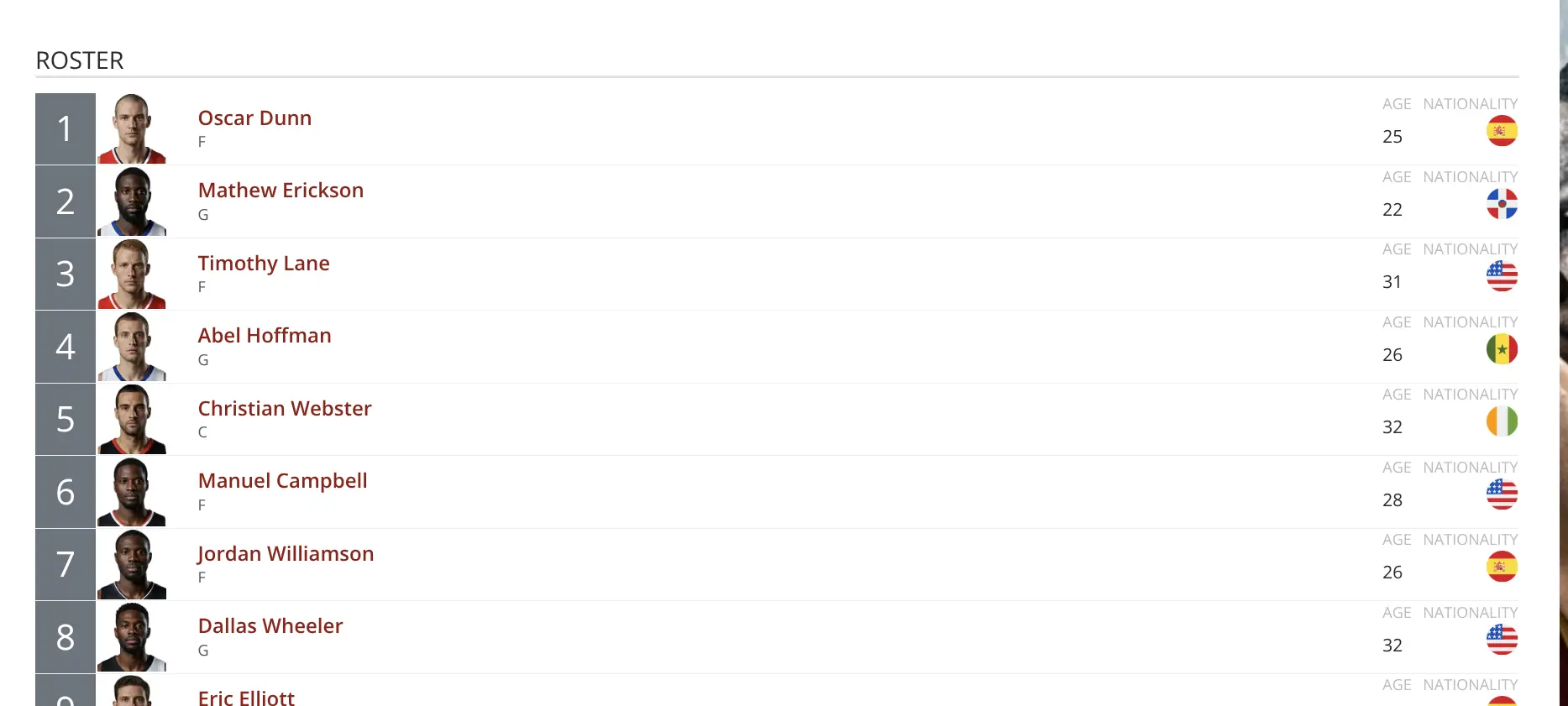
Team rosters allow you to assign players to teams for specific seasons. Each team can have different rosters for each season, making it easy to track squad changes over time. The roster appears on the team page and can be displayed anywhere using the [sl-roster] shortcode.
🎯 Key Features
- ✅ Season-specific rosters – Different squad each season
- ✅ Multiple player sources – Add from team, search by name, or copy from previous seasons
- ✅ Customizable player info – Number, position, and status
- ✅ Flexible layouts – Display as list or grid
- ✅ Drag-and-drop ordering – Organize with roster groups
📋 Prerequisites
Before creating a team roster, ensure you have:
- Players created – Go to Sports Leagues → Persons → Add new player
- Seasons created – Go to Tournaments → Seasons
- Teams created – Go to Sports Leagues → Teams
Tip
Use Data Import for bulk player creation when setting up large rosters.
🚀 Creating a Team Roster
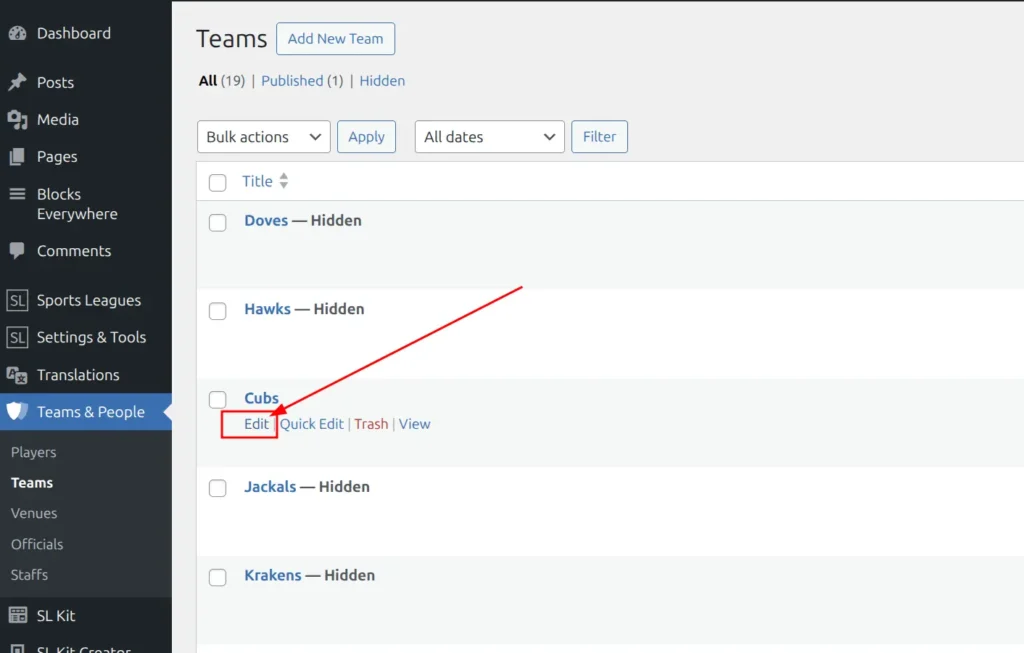
Step 1: Open Team for Editing
- Go to Sports Leagues → Teams
- Click Edit on the team you want to manage
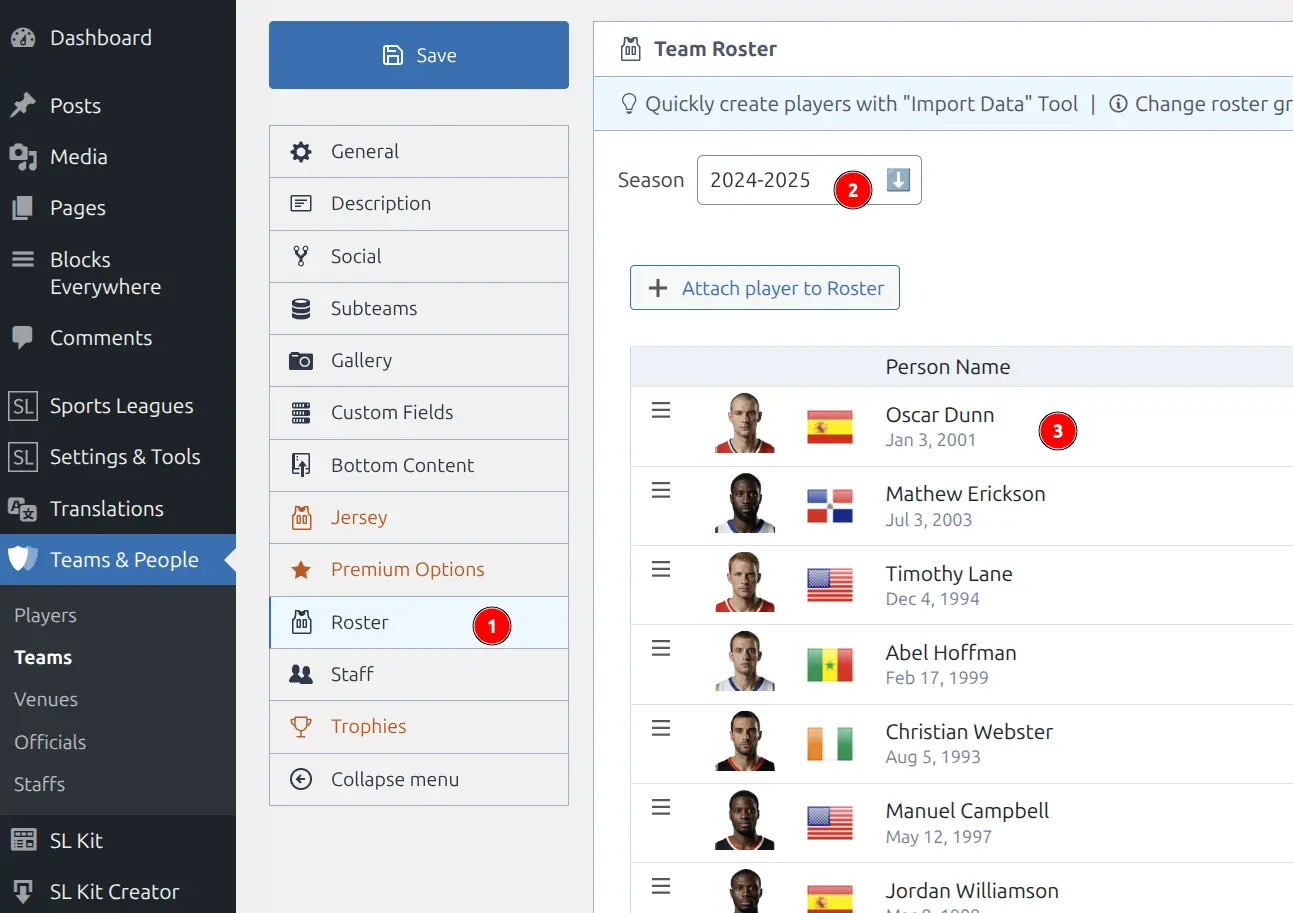
Step 2: Select Season
- Scroll down to the Team Roster metabox
- Select the season from the dropdown
Note
Each season has its own roster. Switching seasons loads that season’s player list.
Step 3: Add Players to Roster
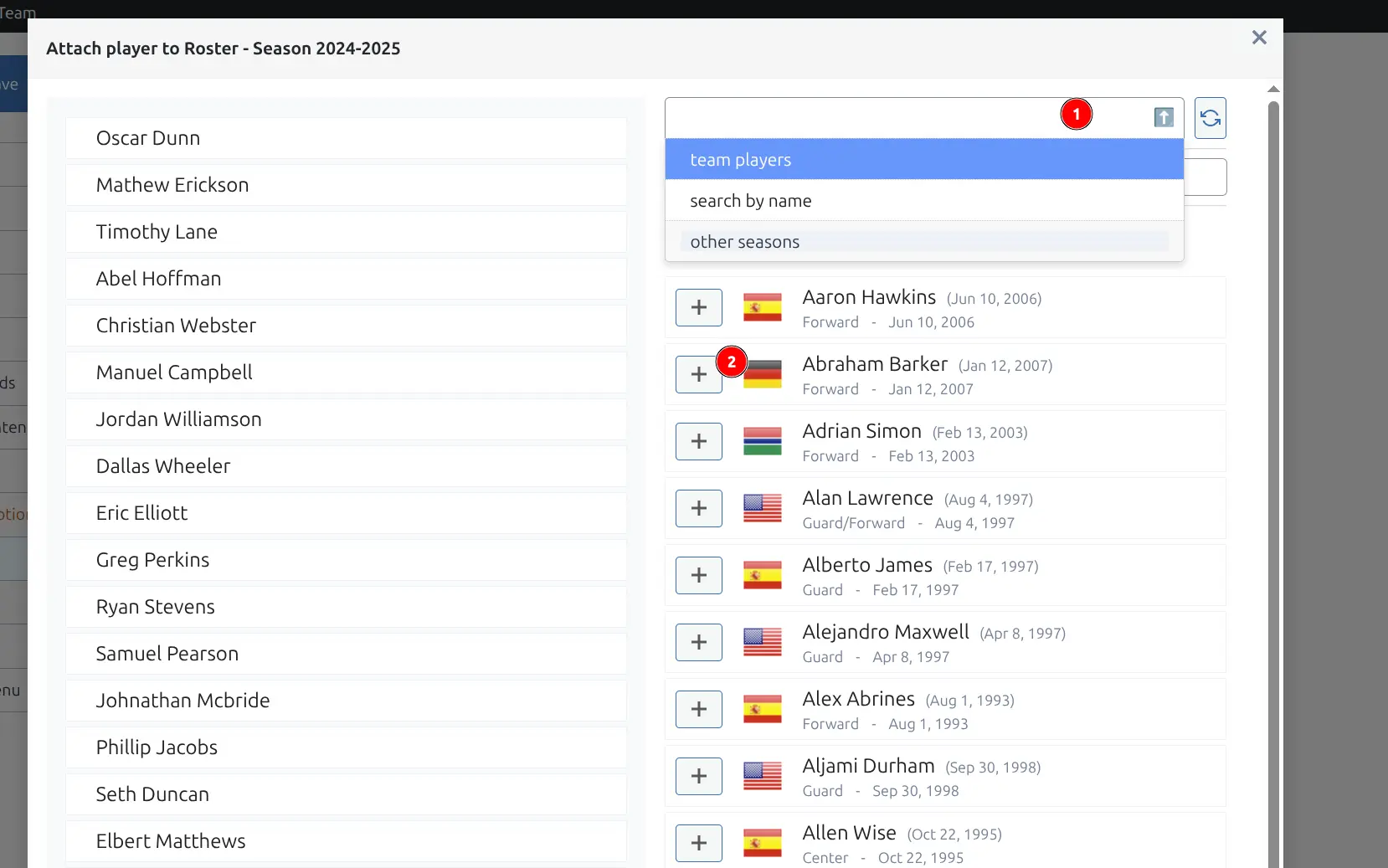
Click the “Attach player to Roster” button.
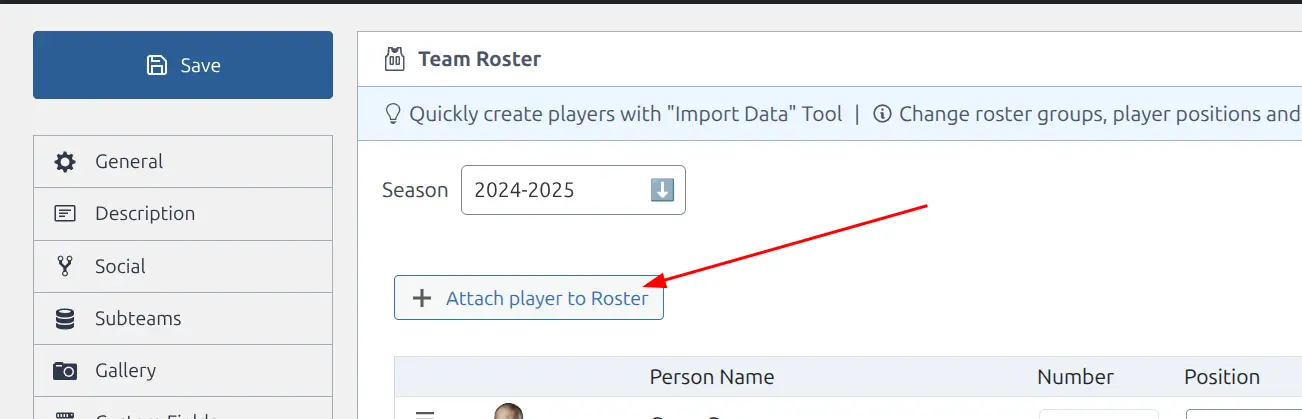
In the modal, choose how to find players:
| Option | Description |
|---|---|
| Team players | Players with this team as their current team |
| Search by name | Search all players by name |
| Other seasons | Copy from previous season rosters |
- Click the + button next to a player to add them to the roster
- Optionally select a roster group to append players to
Step 4: Configure Player Details
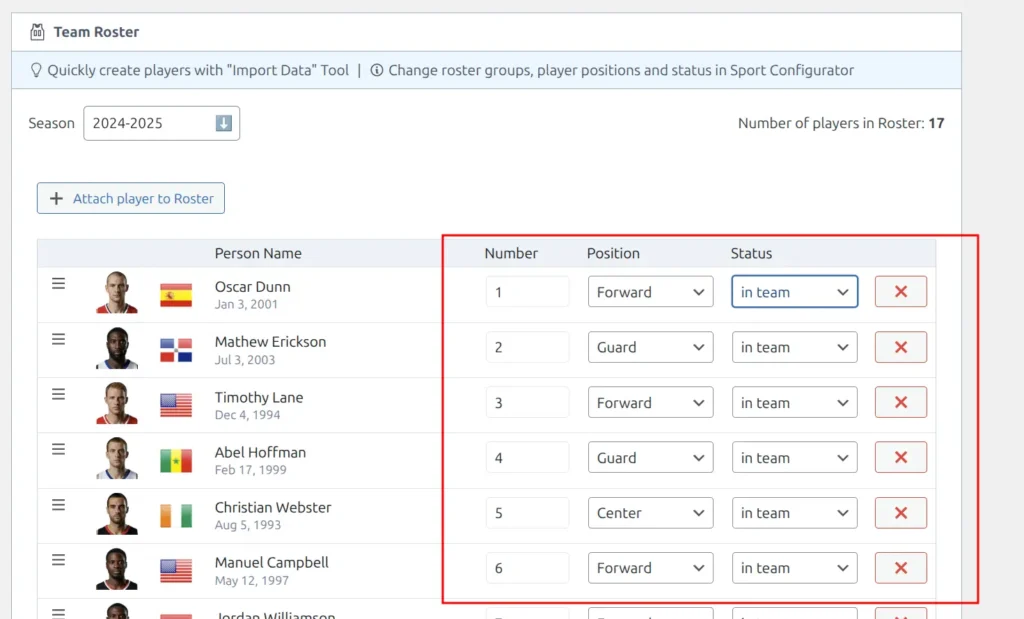
For each player in the roster, you can set:
| Field | Description |
|---|---|
| Number | Jersey/squad number |
| Position | Player position (configured in Configurator) |
| Status | Player status: “in team”, “loaned”, “injured”, etc. (configured in Configurator) |
Tip
Drag-and-drop: Reorder players by dragging the handle on the left side of each row.
Step 5: Save
Click Update or Publish to save the team with its roster.
⚙️ Roster Configuration
Player Positions, Status & Groups
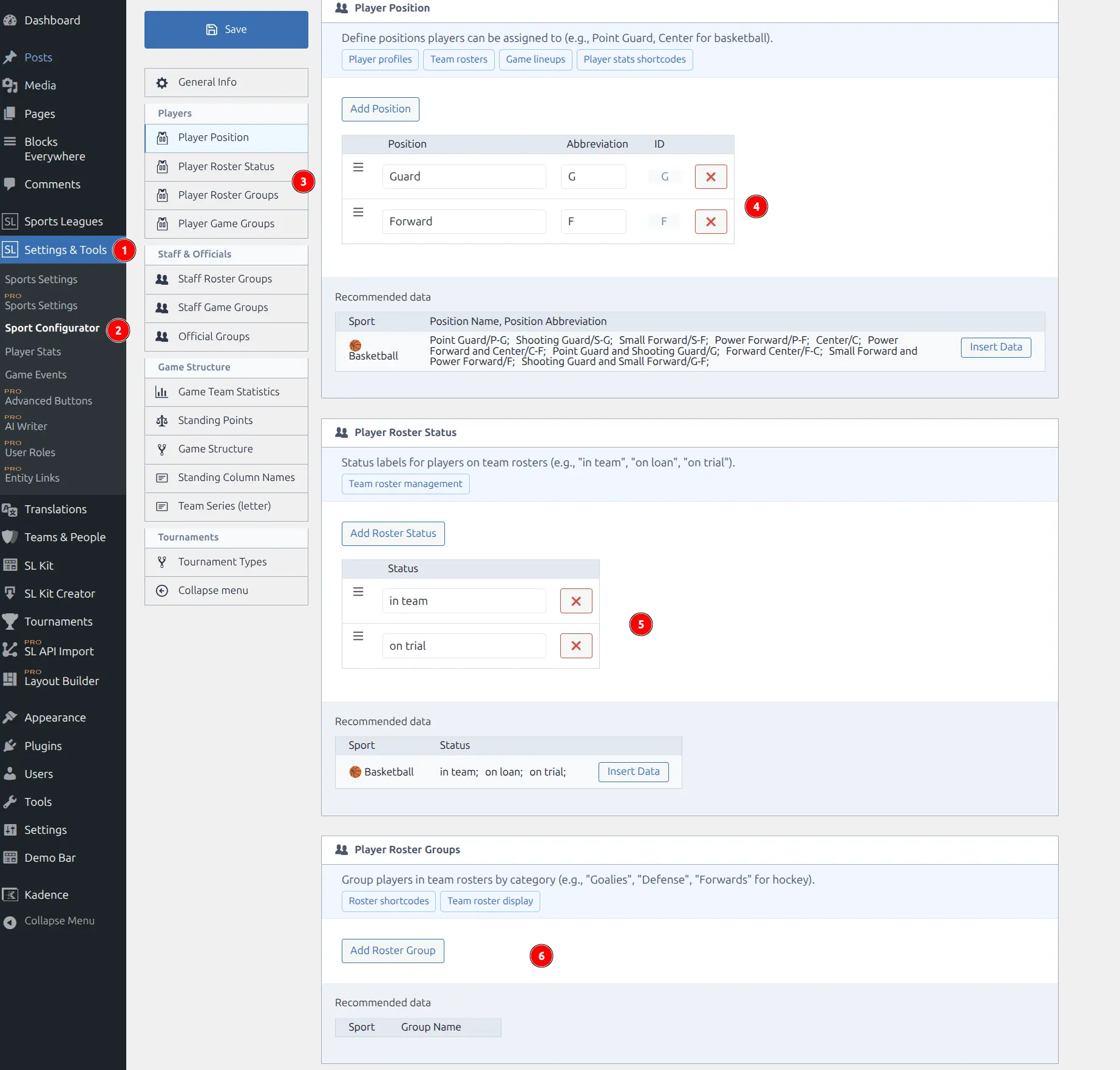
Configure roster options in Sports Leagues → Configurator:
| Setting | Description |
|---|---|
| Positions | Player positions (Forward, Midfielder, etc.) |
| Roster Status | Player status options (in team, loaned, injured) |
| Roster Groups | Group headers for organizing roster (Goalkeepers, Defenders, etc.) |
Hidden Status
Prefix a status with - (e.g., -inactive) to hide players with that status from public display.
📊 Display Options
On Team Page
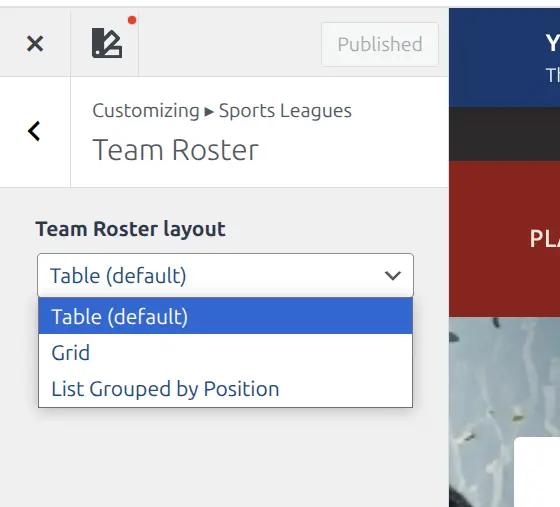
The roster automatically displays on the team page in the Roster section. Layout is controlled by Customizer settings.
Change Layout
- Go to Appearance → Customize → Sports Leagues → Roster
- Select layout: List or Grid
Using the Shortcode
Display roster anywhere with the [sl-roster] shortcode:
[sl-roster team_id="45" season_id="5"]Parameters
| Parameter | Type | Required | Description |
|---|---|---|---|
team_id | int | Yes | Team post ID |
season_id | int | Yes | Season term ID |
title | string | No | Custom title above roster |
layout | string | No | 'grid' for grid layout, empty for list |
header | bool | No | Show default “Roster” header |
Examples
[sl-roster team_id="45" season_id="5" layout="grid"]

[sl-roster team_id="45" season_id="5" title="First Team Squad 2024/25"]
See Roster Shortcode for complete documentation.
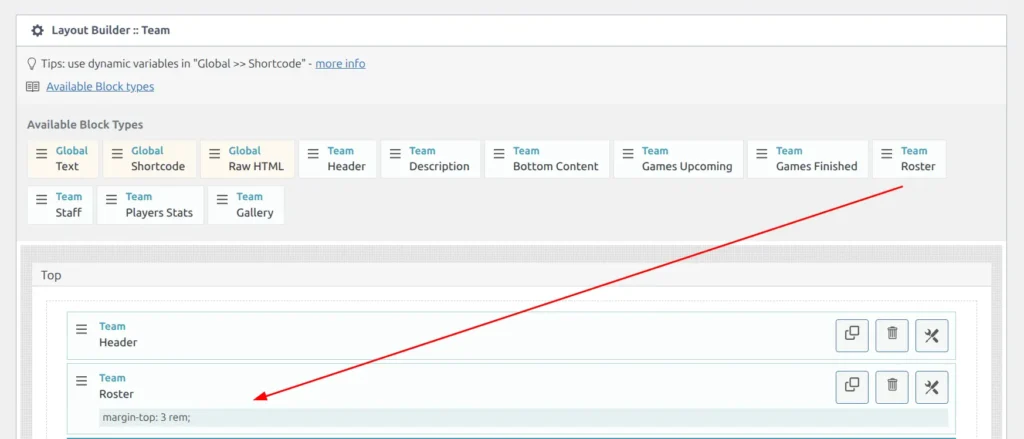
[PRO] Layout Builder
Premium users can add roster to custom page layouts using the Layout Builder:
[PRO] SL Kit Blocks
SL Kit provides enhanced roster display options:
- Roster (adv) – Player cards with customizable statistics
- Players Horizontal Slider – Carousel display
See SL Kit Blocks Reference for details.
💡 Tips & Best Practices
Do this:
- Assign players to teams before adding to roster (Current Team field on player)
- Create roster groups to organize players by position
- Use season-specific rosters to track squad changes
- Copy rosters from previous seasons when starting a new season
Avoid this:
- Do not forget to save the team after modifying the roster
- Do not leave roster empty if you want standings to show player links
🆘 Troubleshooting
Roster is Empty
Problem: No players appear in the roster.
Solutions:
- Create players first: Sports Leagues → Persons → Add new player
- Add players to roster: Team Edit → Team Roster → Attach player to Roster
- Check you are viewing the correct season
Player Not Found in Search
Problem: Cannot find a player when adding to roster.
Solutions:
- Ensure player is published (not draft)
- Use “Search by name” option in the modal
- Click refresh button to update player list
Wrong Layout Displaying
Problem: Roster shows in list format instead of grid.
Solutions:
- For team page: Customize → Sports Leagues → Roster → Layout
- For shortcode: Add
layout="grid"parameter
Players Still Showing After Removal
Problem: Removed players still appear on frontend.
Solutions:
- Save the team after removing players
- Clear cache: SL Settings & Tools → Toolbox → Clear Cache